SentePoint help
Connect your WhatsApp number
Once, about 20 minutes. After this, your SentePoint assistant answers your customers on WhatsApp. Do it on a computer, with SentePoint open at Integrations → WhatsApp next to Meta.
Before you start, you need
- A Facebook account to log in to Meta with.
- A Meta Business account (free at business.facebook.com). If you have a Facebook Page for your business, you probably have one already.
- A phone number for your business WhatsApp that is NOT on the WhatsApp or WhatsApp Business app right now. Use a new SIM, or delete WhatsApp from that number first (WhatsApp → Settings → Account → Delete my account). Deleting removes that phone's chat history.
- That number must be able to receive an SMS or a call, for Meta's code.
- About 20 minutes, on a computer, with SentePoint open at Integrations → WhatsApp.
- 1
Create your Meta app
developers.facebook.com/apps/creation
Log in with Facebook. Name the app after your business, like “Mama Mboga WhatsApp”. For the use case choose Connect with customers through WhatsApp, pick your business, and create the app.
- 2
Add your number, then copy its two IDs
Your app → Use cases → Customize next to WhatsApp → Step 2. Production setup
Skip Step 1, “Try it out”: it only makes a test number. Open Register your WhatsApp phone number, click Add new number, enter your business name and number, and type in the code Meta sends. When your number shows as Registered, copy the Messaging Account ID and Phone Number ID from that box into SentePoint.

In your app, click 1 Use cases, then 2 Customize. Tap to enlarge. 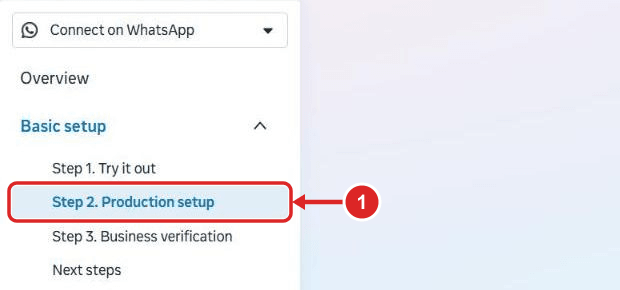
Open Step 2. Production setup. Tap to enlarge. 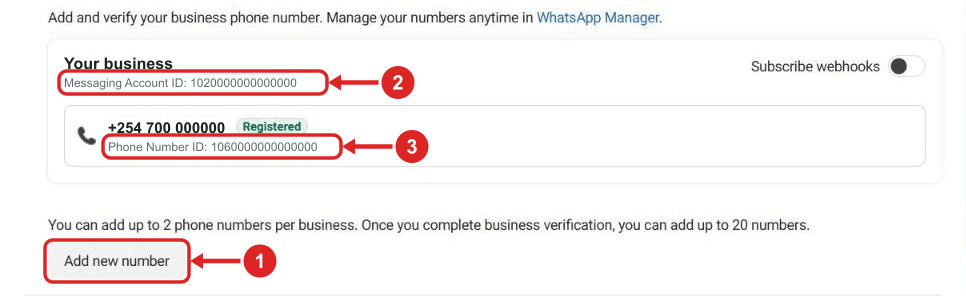
1 adds your number. Then copy 2 the Messaging Account ID and 3 the Phone Number ID. The numbers shown are examples. Tap to enlarge. - 3
Make a permanent access token
Business settings → System users
Click Add, name it “SentePoint”, role Admin (or select an Admin system user you already have). Click the … button, then Assign assets: your app and your messaging account, both with full access. Click Generate token: choose your app, change expiry from Meta’s default of 60 days to Never, and tick
whatsapp_business_messagingandwhatsapp_business_management. Copy the token into SentePoint. Meta shows it only once.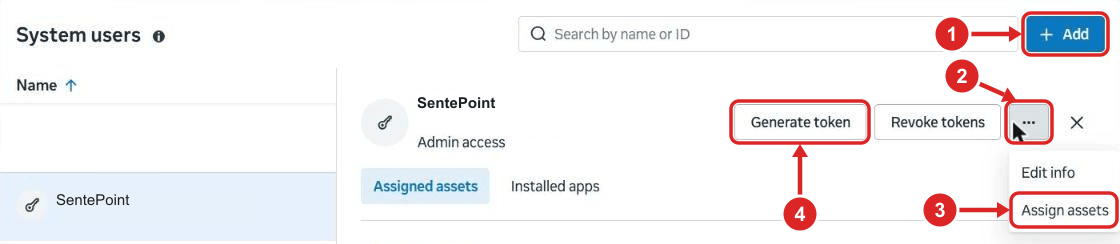
1 adds a system user. 2 opens the menu with 3 Assign assets. 4 makes the token. Tap to enlarge. - 4
Copy your App Secret
Your app → App settings → Basic
Next to App secret click Show, enter your Facebook password, and copy it into SentePoint.
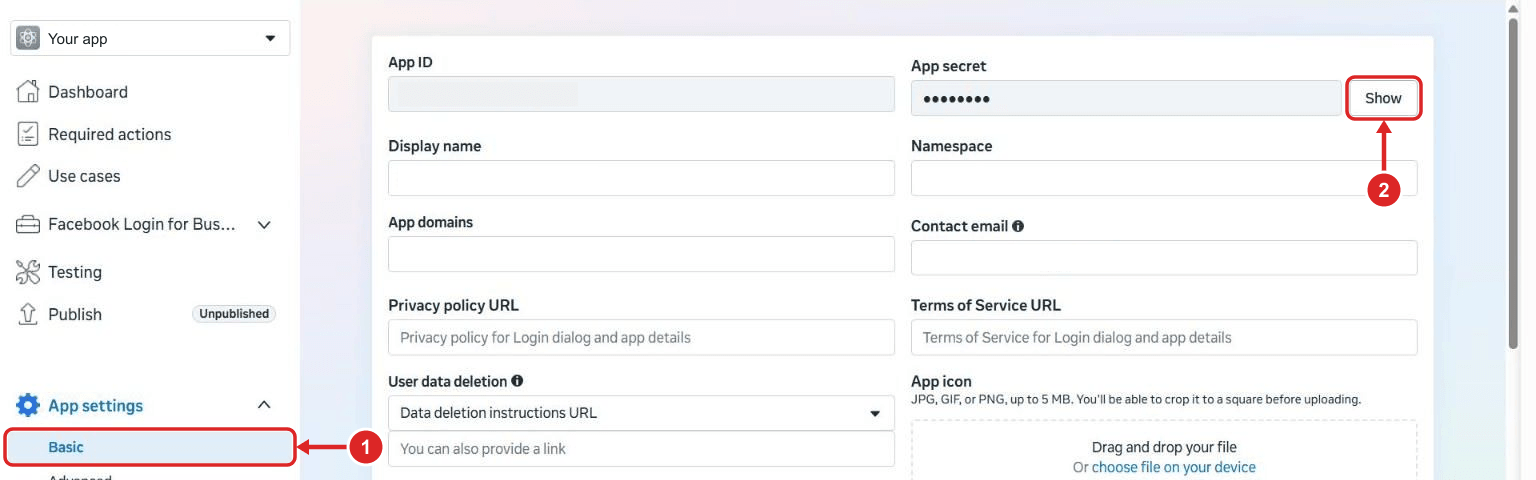
Open 1 App settings → Basic, then click 2 Show. Tap to enlarge. - 5
Choose a PIN and press Connect in SentePoint
SentePoint → Integrations → WhatsApp
Choose a 6-digit PIN and keep it safe. SentePoint checks everything with Meta and puts your number live on WhatsApp. If something is wrong it tells you which box, and why.
- 6
Send messages to SentePoint (webhook)
Your app → Use cases → Customize next to WhatsApp → Step 2. Production setup, then developers.facebook.com/apps/your-app-id/webhooks
SentePoint now shows a Callback URL and a Verify token. Under Configure Webhooks, paste both using SentePoint’s Copy buttons, and click Verify and save. Then open your app’s Webhooks page (SentePoint gives you the link), click Whatsapp Business Account in the Product list, scroll down to Webhook fields, and turn on messages until it says Subscribed. Without this, no messages reach SentePoint.
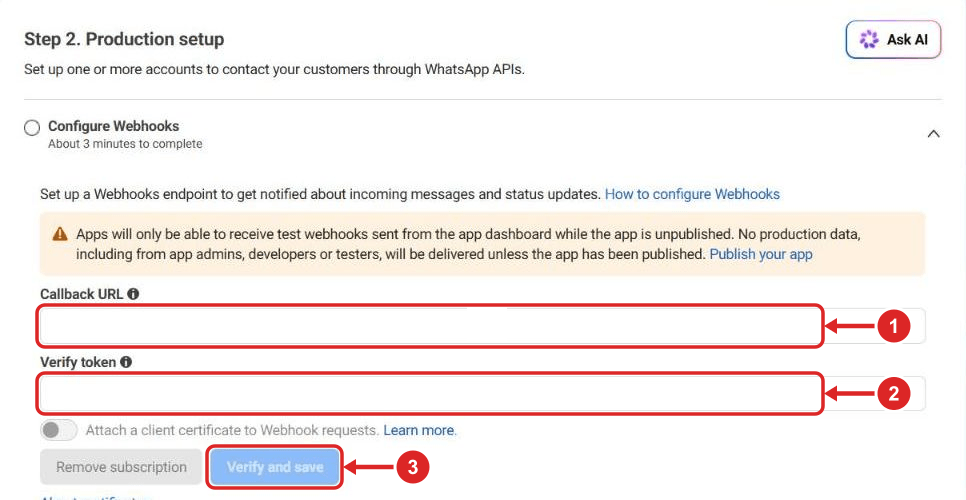
Paste the Callback URL into 1 and the Verify token into 2, then click 3. Tap to enlarge. 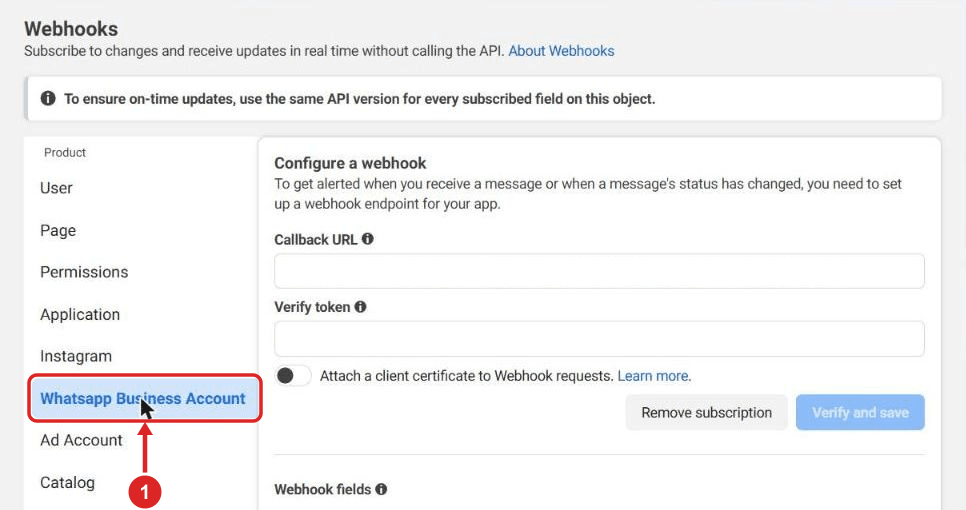
On the Webhooks page, click 1 Whatsapp Business Account. The page starts on User, which has different fields. Tap to enlarge. 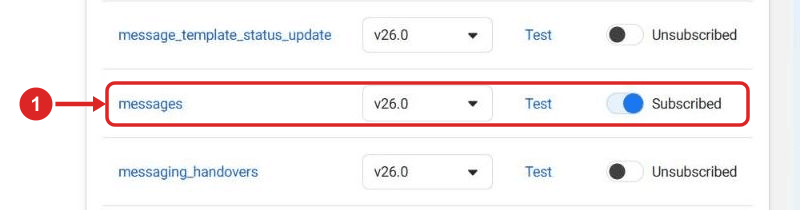
Under Webhook fields, turn on 1 messages until it says Subscribed. Tap to enlarge. - 7
Publish your app
Your app → App settings → Basic, then Publish in the left-hand menu
Add a Privacy Policy URL (SentePoint shows one you can use) and a category, and save. Then click Publish in the left-hand menu, and Publish at the bottom of that page. Until then, Meta doesn’t pass on real customers’ messages.
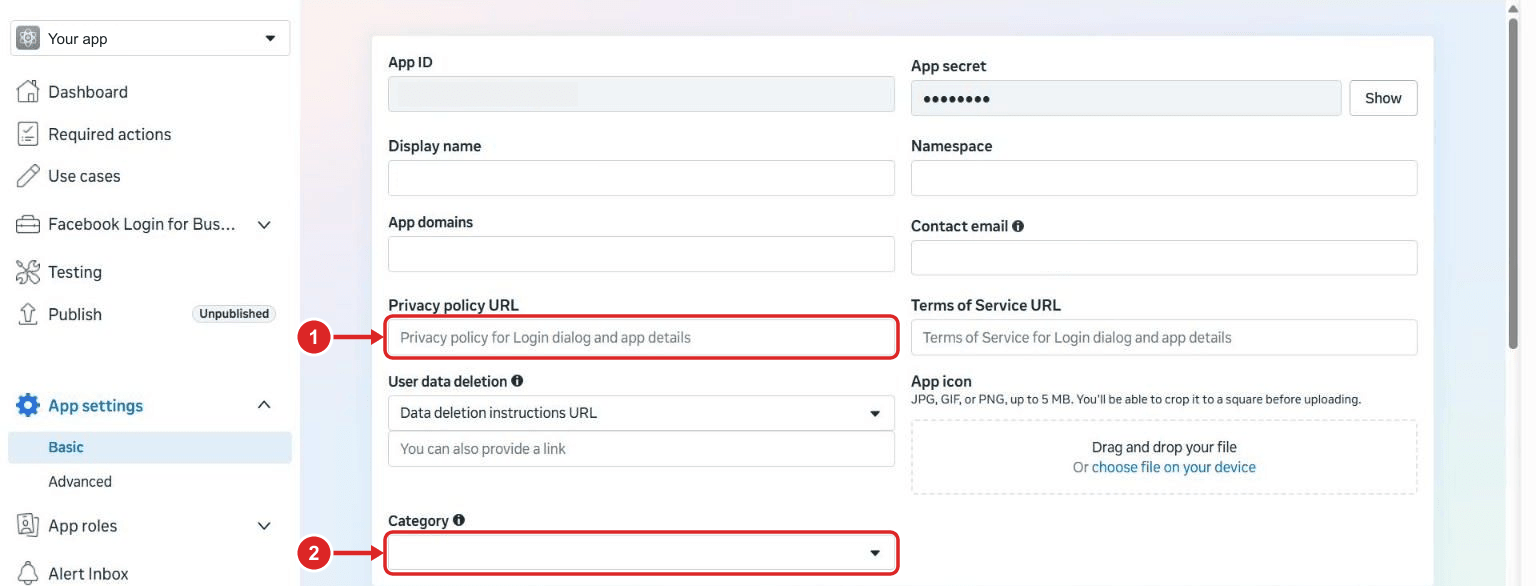
Fill in 1 the Privacy policy URL and 2 the Category, then save at the bottom of the page. Tap to enlarge. 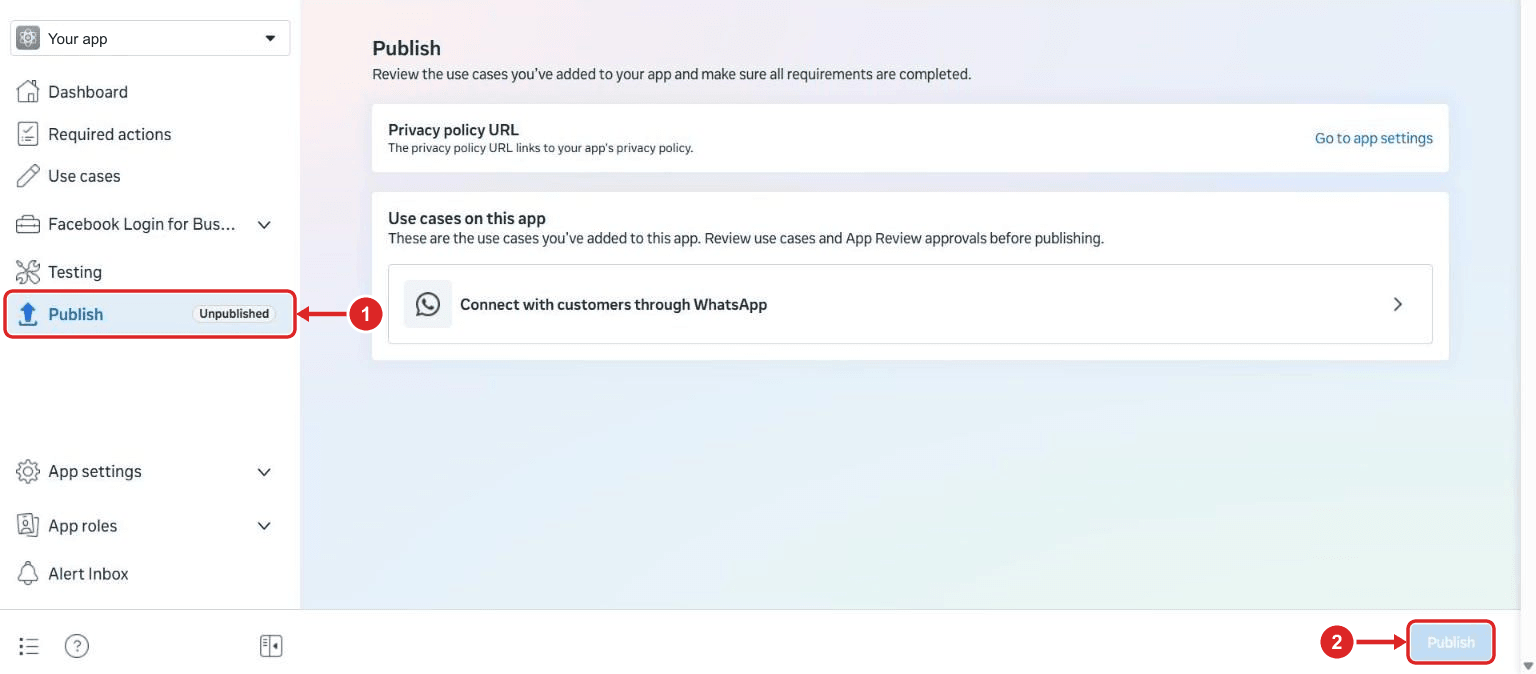
Click 1 Publish in the menu, then 2 Publish. It stays grey until everything Meta needs is filled in. Tap to enlarge. - 8
Send a test message
Another phone
Open your wa.me link (SentePoint shows it) and send “Hi” to your business number. In SentePoint the last tick turns green, the chat appears in your Inbox, and your assistant replies (if it’s switched on under AI Assistant). Share the same link with your customers.
Get alerts on your phone
Your assistant answers customers for you. To know when a new customer messages you or a chat needs a person, turn on notifications. They’re free, and everyone on your team who answers chats sets them up on their own phone. Not getting them? Read the notifications guide.
Android
- On your phone, open Chrome and log in to SentePoint.
- Go to Integrations and tap Turn on notifications.
- Tap Allow when your phone asks.
- Tap Send a test notification to check it works.
iPhone
- You need iOS 16.4 or newer. On your iPhone, open SentePoint in Safari.
- Tap the Share button, then Add to Home Screen, then Add.
- Open SentePoint from your Home Screen and log in.
- Go to Integrations, tap Turn on notifications, then Allow.
- Tap Send a test notification to check it works.
Good to know
- Your number and your Meta app stay yours, in your own Meta Business account.
- Replying to customers who message you first is free. To start conversations yourself (like promotions), add a payment method in WhatsApp Manager.
- Don't reset your App Secret or delete the system user's token later. If you do, reconnect in SentePoint with the new values.
- Keep your 6-digit PIN safe. You need it to reconnect the number or move it later.
- Your customers can reach you through your wa.me link (wa.me/ then your number with the country code and no +). Put it on your website, social pages and receipts.
- Your number can't be opened in the WhatsApp app while it's connected. Read and answer chats in your SentePoint Inbox, and turn on phone notifications under Integrations.
- Meta allows about 2 WhatsApp numbers per business until your business is verified with Meta.
If you get stuck
Step 1: Create your Meta app
I don't see “Connect with customers through WhatsApp”.
Meta renames these options now and then. Pick the one that mentions WhatsApp. If there isn't one, choose “Other”, then “Business”, create the app, and add the WhatsApp product from the app's dashboard.
It asks me to pick a business portfolio and there isn't one.
Create a Meta Business account first at business.facebook.com (free), then come back and create the app again.
Meta asks me to verify my account first.
Meta sometimes asks new developers to confirm a phone number or email. Follow its prompts, then carry on.
Step 2: Add your number, then copy its two IDs
I've created the app, but I can't find Production setup.
Open your app at developers.facebook.com/apps. In the left-hand menu, click Use cases, then Customize next to WhatsApp, and Step 2. Production setup is inside. If there's no WhatsApp use case at all, click Add use cases and choose WhatsApp.
Meta says the number is already registered on WhatsApp.
The number is still on the WhatsApp or WhatsApp Business app. On that phone, open WhatsApp → Settings → Account → Delete my account, then add the number again. If you've already deleted it, Meta can take a few hours to release the number, so try again later.
The code doesn't arrive.
Choose the voice call option instead of SMS, and check the SIM is in a phone with signal. Meta limits how many codes it sends, so if it stops, wait an hour and try again.
Which two IDs do I copy?
In Step 2. Production setup, open Register your WhatsApp phone number. Copy the Messaging Account ID under your account name, and the Phone Number ID under your number. Don't use the IDs of the test number from Step 1.
Do I need the Business verification in Step 3?
No. Meta describes it as optional, even if it shows Rejected. You can connect and reply to customers without it. It helps later: it shows your business name in chats and allows more messages and more numbers.
Meta rejected my display name.
The display name has to match your business, like the name on your shop, receipts or Facebook Page. Use your real business name.
Step 3: Make a permanent access token
I can't find “System users”.
Only admins of the Meta Business account can see it. Ask whoever set up your business's Facebook to make you an admin (Business settings → People), or ask them to do this step.
My app or the WhatsApp permissions aren't in the list when I generate the token.
Give the system user the app and your WhatsApp account first (the … button → Assign assets, full access), then click Generate token again and choose that app. If the list shows only read_audience_network_insights, another app is selected. Scroll the permission list to find both WhatsApp ones.
SentePoint says the token isn't valid or has expired.
You probably copied the temporary token from the Try it out page, which stops working after a day. Make the token from System users instead, with expiry set to Never.
Step 4: Copy your App Secret
SentePoint says the App Secret doesn't belong to the app.
Copy the App Secret from the same app you chose when generating the token (App settings → Basic → Show). Make sure no spaces came along with it.
Step 5: Choose a PIN and press Connect in SentePoint
“That phone number isn't in that WhatsApp Business Account.”
The two IDs come from different places, usually Meta's test number. Go back to Step 2. Production setup, open Register your WhatsApp phone number, and copy both IDs from your number's box.
“Couldn't link your app to your WhatsApp account.”
The token is missing the whatsapp_business_management permission. Generate a new token with both WhatsApp permissions ticked.
“Already connected to another SentePoint business.”
This number is already in use on another SentePoint account. Message us and we'll sort it out.
What is the 6-digit PIN for?
Meta needs it to put your number live on WhatsApp, and it protects the number from being moved without you. You choose it. Avoid easy ones like 123456, and keep it safe. We send it to Meta and don't store it.
SentePoint says the number already has a different PIN.
Someone has set a PIN on this number before. Enter that PIN. If nobody has it, message us and we'll help you reset it.
Step 6: Send messages to SentePoint (webhook)
Meta says the callback URL couldn't be validated.
Use the Copy buttons in SentePoint for both the Callback URL and the Verify token, so nothing is cut off or has extra spaces, then click Verify and save again.
It saved, but SentePoint still says waiting.
SentePoint ticks this when Meta checks the webhook. Give it a few seconds. If it doesn't tick, go back to Configure Webhooks and click Verify and save once more.
SentePoint says I'm not subscribed to messages.
On Meta's Webhooks page, the Product list starts on User, which has different fields. Click Whatsapp Business Account, scroll down to Webhook fields, and turn on the switch next to messages (not message_echoes or the others) until it says Subscribed.
Step 7: Publish your app
The Publish button won't work.
The Publish page shows what's missing, usually the Privacy Policy URL. Fill that in under App settings → Basic, save, then go back to Publish.
Step 8: Send a test message
I sent “Hi” but nothing shows in SentePoint.
Check three things: the app is published (step 7), you subscribed to “messages” in the webhook fields (step 6), and you messaged from a different phone, not the business number itself. Then send a new message: Meta doesn't resend old ones.
A phone says the number isn't on WhatsApp and offers to invite it.
On that phone, open your wa.me link, shown in this step. If the chat opens and your message arrives, the number is working, and only that phone's contacts are out of date. Save the number with its country code (like +254…). Then in WhatsApp tap New chat → ⋮ → Refresh, or pull the list down on iPhone. Share your wa.me link with customers, because it works without saving the number. If the link says the same thing, message us.
The message arrived but the assistant didn't reply.
Turn the assistant on: AI Assistant → tick “Assistant is active” → Save. Your SentePoint plan also needs to be active.